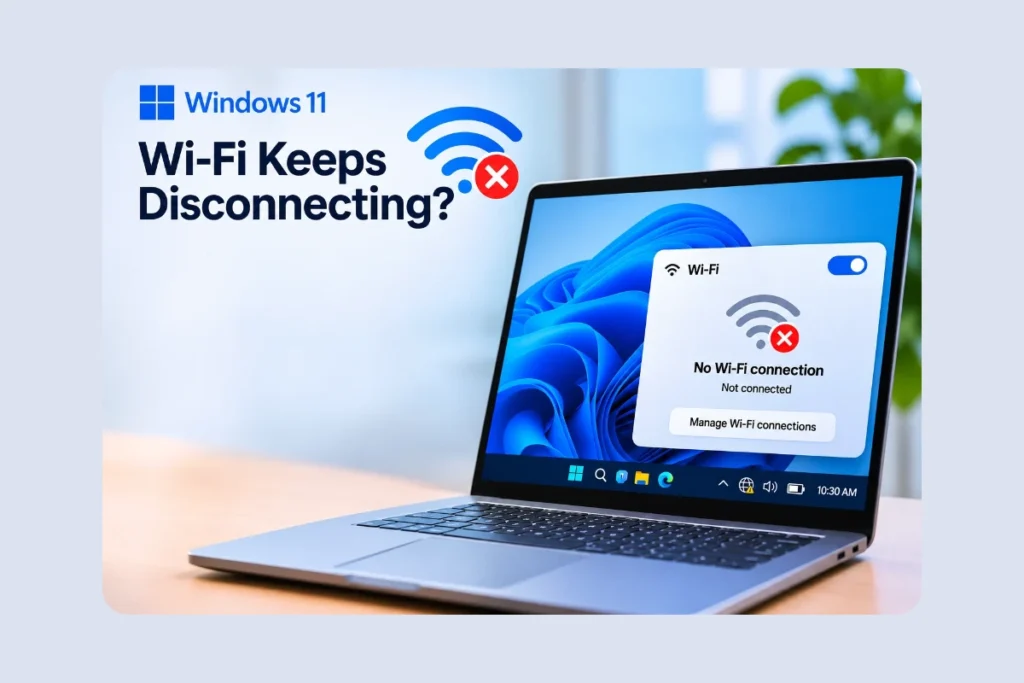
If Wi-Fi keeps dropping on Windows 11, start with the easy fixes: restart your PC and router, forget and rejoin the network, and turn off the power-saving setting on your Wi-Fi adapter. If that does not help, update or roll back the Wi-Fi driver, reset the network stack and check your router settings. Most cases are solved by one of those steps.
Few things are more annoying than a laptop that loses its connection in the middle of an online class, a video call or a download. The good news is that the cause is usually something small. This guide goes from the quickest fixes to the deeper ones, so you can stop as soon as the problem is gone.
Menu names can differ slightly between Windows 11 versions. If you cannot find a setting exactly where this guide says, use the search box on the taskbar. Pedagogy Zone is not affiliated with Microsoft or any router brand.
First, Find Out Whether It Is Your PC or Your Network
Before you change anything, spend two minutes on this test. It will save you a lot of time.
- Check another device. Does your phone or another laptop also drop off the same Wi-Fi? If yes, the problem is probably your router, your internet provider or the signal in that room. Skip to the router fixes at the bottom.
- Try another network. Connect your PC to a phone hotspot. If it stays connected there, your PC is fine and the home network is the problem. If it still drops, the problem is on the PC.
- Check the distance. Move closer to the router. If the connection becomes stable, it is a signal problem, not a Windows problem.
12 Fixes for Wi-Fi That Keeps Disconnecting on Windows 11
1. Restart your PC and your router
It sounds too simple, but it works more often than you would expect. Shut down your PC fully. Then unplug your router and modem, wait about 30 seconds, plug them back in and wait a few minutes for the lights to settle. Then turn the PC back on.
2. Forget the network and connect again
A saved profile can get corrupted. Removing it and rejoining often fixes random drops.
- Open Settings and go to Network & internet > Wi-Fi.
- Choose Manage known networks.
- Select your network and click Forget.
- Reconnect from the Wi-Fi menu and enter the password again.
3. Run the Windows network troubleshooter
Go to Settings > System > Troubleshoot > Other troubleshooters and run Network and Internet. It will not fix every problem, but it can catch simple ones, like a disabled adapter or a wrong setting.
4. Stop Windows from turning off your Wi-Fi adapter
To save battery, Windows can switch off the Wi-Fi card at the wrong time. This is a very common cause on laptops.
- Right-click the Start button and open Device Manager.
- Expand Network adapters and double-click your Wi-Fi adapter (the name often includes “Wireless” or “Wi-Fi”).
- Open the Power Management tab.
- Uncheck Allow the computer to turn off this device to save power, then click OK.
5. Set the wireless adapter to maximum performance
- Open Control Panel > Power Options.
- Click Change plan settings next to your current plan, then Change advanced power settings.
- Expand Wireless Adapter Settings > Power Saving Mode.
- Set both On battery and Plugged in to Maximum Performance.
Battery life may drop a little, but the connection should be steadier.
6. Update, or roll back, the Wi-Fi driver
An outdated or buggy driver is one of the top causes of dropping Wi-Fi.
- Update: In Device Manager, right-click your Wi-Fi adapter and choose Update driver. For the best results, also check your laptop maker’s support page (Dell, HP, Lenovo, ASUS, Acer and so on) for the latest Wi-Fi driver for your exact model.
- Roll back: If the problem started right after an update, open the adapter’s Properties, go to the Driver tab and click Roll Back Driver (if the button is available).
Run Windows Update as well, since it sometimes delivers newer network drivers.
7. Turn off random hardware addresses
This feature is meant to improve privacy, but it can confuse some routers and school networks.
- Go to Settings > Network & internet > Wi-Fi.
- Open the properties of your connected network.
- Set Random hardware addresses to Off for that network, then reconnect.
8. Turn off Fast Startup
Fast Startup can keep a faulty network state alive between shutdowns.
- Open Control Panel > Power Options > Choose what the power buttons do.
- Click Change settings that are currently unavailable.
- Uncheck Turn on fast startup and save.
9. Reset the network stack with commands
Right-click Start, choose Terminal (Admin) or Command Prompt (Admin), and run these one at a time:
netsh winsock reset
netsh int ip reset
ipconfig /release
ipconfig /renew
ipconfig /flushdns
Restart your PC afterward.
10. Make sure the WLAN AutoConfig service is running
- Press Windows + R, type
services.mscand press Enter. - Find WLAN AutoConfig and double-click it.
- Set Startup type to Automatic and click Start if it is stopped.
11. Use Network Reset (last software step)
Go to Settings > Network & internet > Advanced network settings > Network reset. This removes and reinstalls your network adapters and returns network settings to default. It will also delete saved Wi-Fi networks and may remove VPN settings, so make sure you know your Wi-Fi passwords first.
12. Check your router settings
If other devices also lose connection, or nothing above helped, look at the router:
- Try the 5 GHz band. It is faster and usually less crowded than 2.4 GHz, but it has a shorter range. If you are far from the router, 2.4 GHz may be more stable.
- Change the Wi-Fi channel. In crowded apartments, neighbors’ networks can interfere. Setting a less busy channel can help.
- Update the router firmware. Check your router maker’s app or admin page.
- Move the router. Keep it in a central, open spot, away from microwaves, thick walls and metal.
- Call your internet provider. If the problem is in the line or modem, they need to fix it.
Dorm and Campus Wi-Fi: A Special Case
If you only get disconnected on a college network, such as in a dorm or library, the cause may not be your laptop. Campus networks often make you sign in again after a time limit, they may limit the number of devices per student, and some use special settings for networks like eduroam. Check your school IT help desk page for the right setup steps, and ask them if other students have the same problem. Routers or smart speakers that you bring yourself can also cause trouble on shared networks, so check the rules first.
How to Find Out What Is Happening: The WLAN Report
If the problem comes and goes, Windows can create a report of your Wi-Fi history. Open Terminal as administrator and run:
netsh wlan show wlanreport
It saves an HTML report that you can open in your browser. The report shows when you connected, when you disconnected and any error messages. This is useful if you need to explain the problem to IT support or your internet provider.
When It Might Be Hardware
If you have tried everything and the problem remains on every network, the Wi-Fi card or its antenna could be failing. Signs include dropping Wi-Fi on every network, a card that vanishes from Device Manager, or problems that began after a drop or repair. A USB Wi-Fi adapter is a cheap way to test this. If it works fine, the built-in card is likely the problem, and you may need a repair under warranty or a replacement.
Frequently Asked Questions
Why does my Wi-Fi keep disconnecting on Windows 11 but not on my phone?
That usually points to your PC’s adapter settings or driver, not the router. Start with fixes 4 to 7.
Why does Wi-Fi disconnect when my laptop goes to sleep?
Power-saving settings may turn off the adapter. Follow fixes 4 and 5 to prevent that.
Will resetting the network delete my files?
No. Network Reset only removes network settings, such as saved Wi-Fi networks and VPN connections. Your files are not touched.
Is it my router or my laptop?
Test another device and another network, such as a phone hotspot. If every device drops, suspect the router or your internet provider. If only your PC drops, suspect the PC.
Should I replace my router?
Only after you try the router fixes above. Routers that are many years old can struggle with many devices, so replacing one can help in busy households, but it is not the first step.
Summary
- First, test another device and another network to see if it is the PC or the router.
- Try the easy fixes first: restart, forget the network and turn off adapter power saving.
- Update or roll back the Wi-Fi driver, and reset the network stack if needed.
- Use Network Reset as a last software step, because it deletes saved networks.
- On campus Wi-Fi, check with your school IT team.
Sources and Further Reading
- Microsoft Support: Windows help
- Your laptop maker’s support page for model-specific Wi-Fi drivers
- Your router maker’s support page for firmware updates